
Customize Your Template
Customizing process made easy
-
Edit your site title
Add your logo
Edit your header*
Add your social links
Enable Pinterest Pins
*if you have a page that you don’t want the header showing (like a course or sales page, for example), you can open your pages editing panel> click gear icon over the page you want to edit > click navigation under page settings tab > toggle off “Show Header”
-
-
See our videos below!
Upload photos (bulk upload option using your asset library is great if you already have a lot saved on your computer)
Add/swap photos into template and optimize SEO for photos (see SEO section below)
Edit photos if necessary
Create and upload graphics and product mockups (if applicable - can skip this step for now if want to keep moving)
-
Write all of your content/copy for the main structure of your website
Add your copy to your site and change the sizing of fonts, photos, and sections as needed
If you want, write 1-2 blog posts to have published when you launch your site (not necessary at this step, though!)
-
Use the phone icon at the top right of your website editing page to check what the mobile view looks like
Edit the mobile view as you’re adding different sized photos and copy than the original template
Make sure mobile view looks good before assuming your website is all ready
NOTE: you can change the position and size of blocks/items in mobile view (vs. desktop view), but you cannot have blocks/items that are present in only the desktop or mobile view or are in different styles (ex: font size, spacing, bold, etc.)
-
Ensure your custom code is customized and functioning as you want (if applicable)
Click on each menu item for specific steps & links →
Additional how-to videos below
Editing in Squarespace:
Video Guides
Watch and follow along to learn how to start editing your Squarespace website template, including uploading and adding your brand photos and copy (writing). We also introduce you to the drag-and-drop style fluid builder of Squarespace and how to view and edit the mobile view of your website.
How to set up and connect your BLOG page, plus add and edit a sidebar to your blog if desired (sidebar currently included in our free basic blog template):
How to connect links and pages in your website, add and connect your email marketing process, and final touches:
NOTE: If you use or plan to use an email marketing program other than Google, Squarespace, or MailChimp, you may have to replace the newsletter block in Squarespace with some code. See an example of how to do that with popular email marketing software Kit with a how-to guide here. If you DO use this code block on your site instead of a newsletter block, please note that your subscriber information will not also be saved with Squarespace. You may instead want to connect Squarespace to your alternate email marketing software with another service called Zapier so that your information and subscribers are linked to each. I personally use Kit and do not worry about saving my subscribers in Squarespace.
Here’s how to edit and use some extra cool effects, design elements, and features we also added to our templates:
How to create movement and shadow effects, add blog categories & links, and more:
How to add page jump links, edit a summary block, and more:
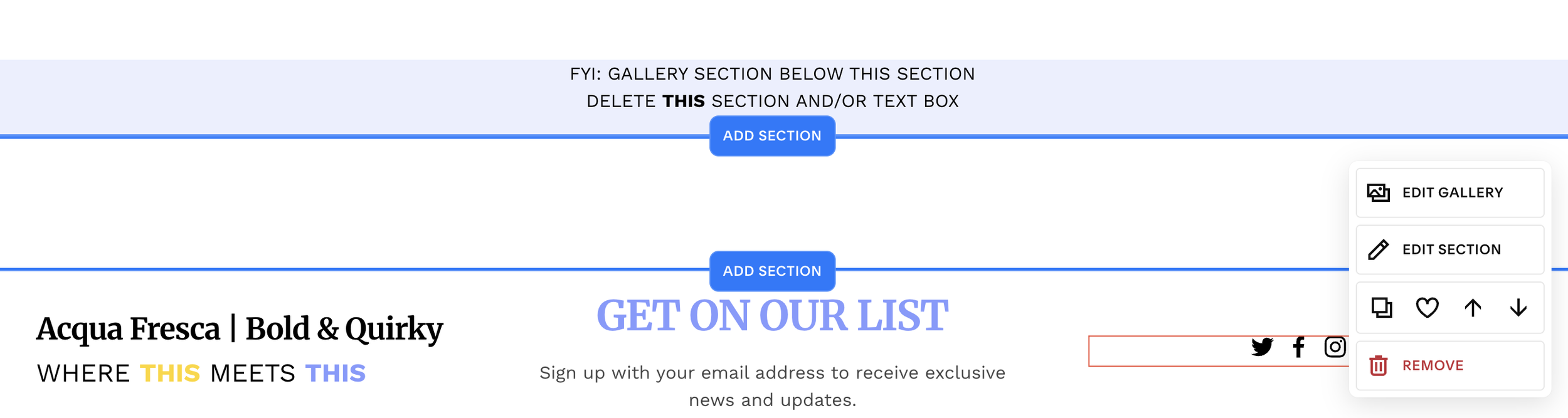
A NOTE ABOUT GALLERY SECTIONS: if your template has GALLERY sections, the photo placeholders in this section in Squarespace will NOT pull through to your template. You need to add your own photos via the “Edit Gallery” button when hovering over that section. These sections will be indicated to you via a message as shown in the photo below:
How to edit and set up your Squarespace-hosted course:
(not my video, but I love Big Cat Creative!)
Edit Custom CSS
(La Terra Fina Template only)
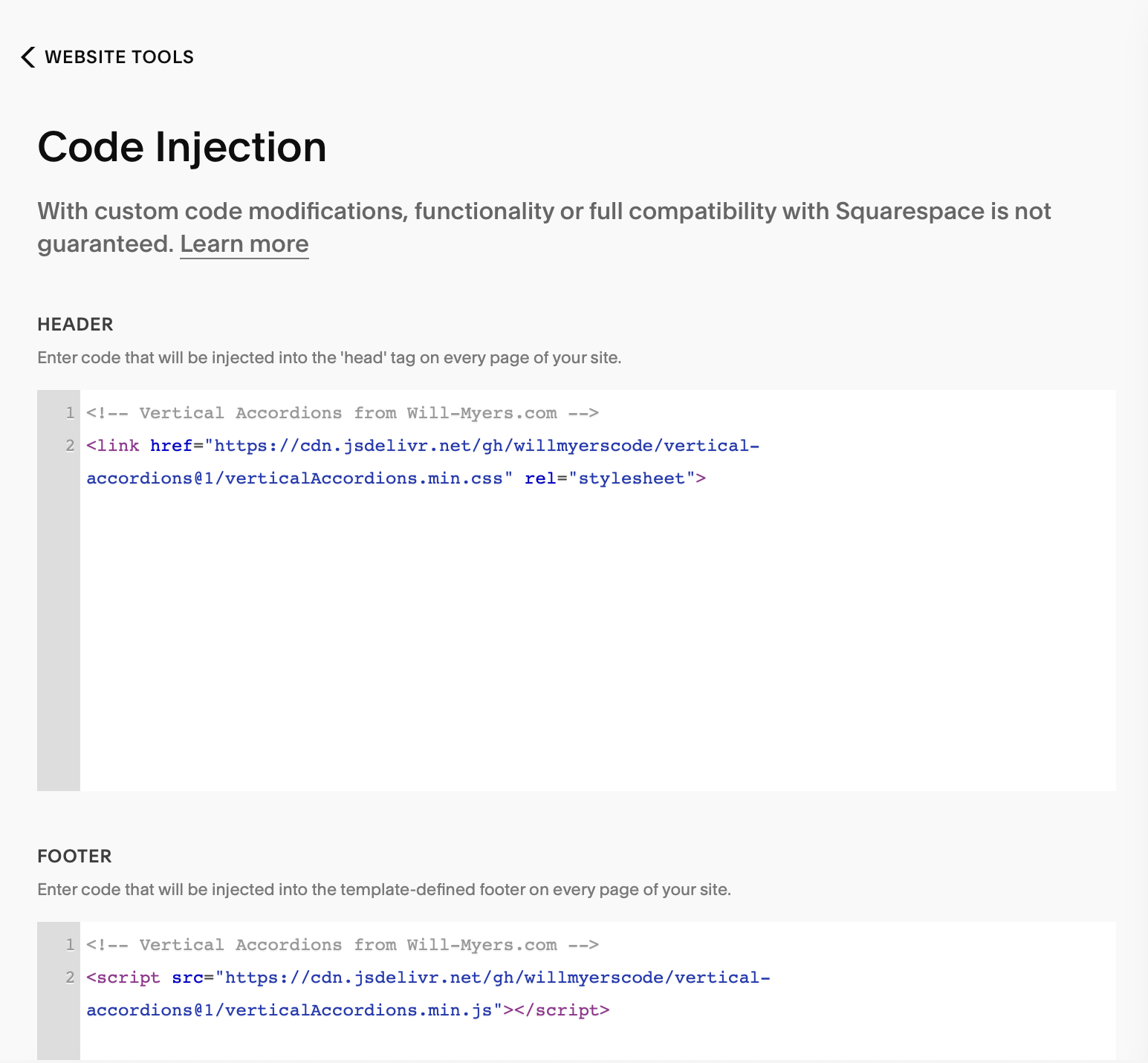
Decide to keep or delete the horizontal accordion effect on your site. If you want to delete, navigate into “Website” > “Pages” > scroll to bottom of sidebar > “Website Tools” > “Code Injection” section in your editing sidebar and delete the code in the Header and Footer sections (see photo).
This accordion displays a portfolio or blog pages. It currently is set up to display the 4 portfolio pages within this template (labelled “Portfolio (Horizontal Accordion)” in your editing sidebar).
You will just need to edit the photos, buttons, colors, copy, and whatever else you want within these individual portfolio pages to display what you’d like within the accordion!
If you want to change what this accordion displays in any way (either the urls or pages it displays, the color, how many tabs, etc), you will have to edit the custom code on the page itself. When in editing mode, you can double click the accordion section to open up the code box in order to edit it. I RECOMMEND DUPLICATING THIS SECTION BEFORE MAKING CHANGES just in case you need to start over!
Some of these changes to the on-page html code you might want to make include:
The URL slug (what portfolio or blog pages show up in the accordion. This is found in the settings of the page you want to use. Change what is displayed by editing the highlighted part of the code below to match the URL slug of the portfolio or blog pages you want to use):
<div data-wm-plugin="vertical-accordions" data-source="/portfolio-horizontal-accordion"> </div>
Number of tabs and/or which tab is “open” by default (copy this code below to replace the current code to specify the number of tabs (the number in “quotes” after data-count=, maximum is 8.) and which tab is open (the number in “quotes” after data-open=)
<div data-wm-plugin="vertical-accordions" data-source="/portfolio-horizontal-accordion" data-count="5" data-open="2"> </div>
submit a support ticket if you have other questions!
Some changes to the custom CSS code (in the Website Tools > Custom CSS) you might want to make include:
The colors of the tabs: Copy and paste this code into the custom CSS box. Change the color of each tab by pasting the color HEX code after each # and add or delete a line of code for extra tabs as needed.
Make sure to include the {brackets} when you copy/paste this and all code!
div[data-wm-plugin="vertical-accordions"] {
--va-panel-1-background: #ead3c3;
--va-panel-2-background: #e0cbbd;
--va-panel-3-background: #c8b2a6;
--va-panel-4-background: #b59c7a;
--va-panel-5-background: #ead3c3;
}
submit a support ticket if you have other questions!