Grow your Substack with Squarespace
How’re your Substack and your website supporting each other? Are they at all?
These little tweaks and custom css help create a seamless Squarespace and Substack ecosystem, making your efforts, intention, creativity, and expertise go even further.
In this post, you’ll learn how to:
embed a Substack subscription block into your Squarespace website
change the generic link icon to a Substack icon in your header and social links sections
add your Substack as one of the pages displayed in your header - great option if you don’t want to display all your social links there
And before you read any further, there’s a sign up form at the bottom of this post to get on the waitlist (and maybe win a free Substack to Squarespace website template!). Get on the waitlist
How to get the Substack icon to show up in your Squarespace website header
Here’s a great way to change that generic link icon to a Substack icon in the header of your Squarespace website where your social links are displayed
Video: Add a styled Substack icon to your social links (written instructions below video)
In this video walkthrough, I show you how to add custom css to your Squarespace website so that your Substack social link icon is displayed as a Substack icon instead of a generic link.
Here’s how to add this icon to your Squarespace website header:
Step 1. Copy your Substack publication link.
Step 2. Add this link to your website.
Go to Settings > website > social links > add social link > paste Substack link and make sure it’s listed as “visible”
Step 3. Copy the entire code written between the horizontal lines:
//Substack social link icon//

a[href*=”substack”].sqs-svg-icon--wrapper, a[href*=”substack”].header-icon {

&{

background-image: url(”data:image/svg+xml,%3Csvg xmlns=’http://www.w3.org/2000/svg’ width=’20’ height=’25’ viewBox=’0 0 24 24’%3E%3Cpath fill=’%23000’ d=’M22.539 8.242H1.46V5.406h21.08zM1.46 10.812V24L12 18.11L22.54 24V10.812zM22.54 0H1.46v2.836h21.08z’/%3E%3C/svg%3E”);

background-size: contain;

background-repeat: no-repeat;

background-position: center center;

}

svg {

display: none;

}

}

a[href*=”substack”].header-icon {

top: 1px;

position :relative;

}
Step 4. Paste this code into “Custom CSS” section of your Squarespace website and click “save”
Step 5. Change sizing as needed by changing the width and height numbers (see video walkthrough above)
Step 6. Change color as needed by inserting your desired HEX code numbers in fill=’%23xxxxxx’ (see video walkthrough above)

How to connect Substack to your Squarespace website
Here’s how to embed a Substack subscription block to your Squarespace website:
*Note: this option requires a Squarespace Business/Core plan or higher
Step 1. Copy your HTML embed code from your Substack dashboard.
Go to Settings > Growth > Embeddable subscribe button > select/deselect preferred options like “Show logo in embed” and “Transparent background” > click “Copy”
Step 2. Add a Code Block on your Squarespace page
Step 3. Delete the complete <p>Hello, World!</p> and paste that copied HTML embed code into the Code Block and click save
Step 4. Optional: center the block on your page by adding code snippet <center> right before the Substack HTML embed code
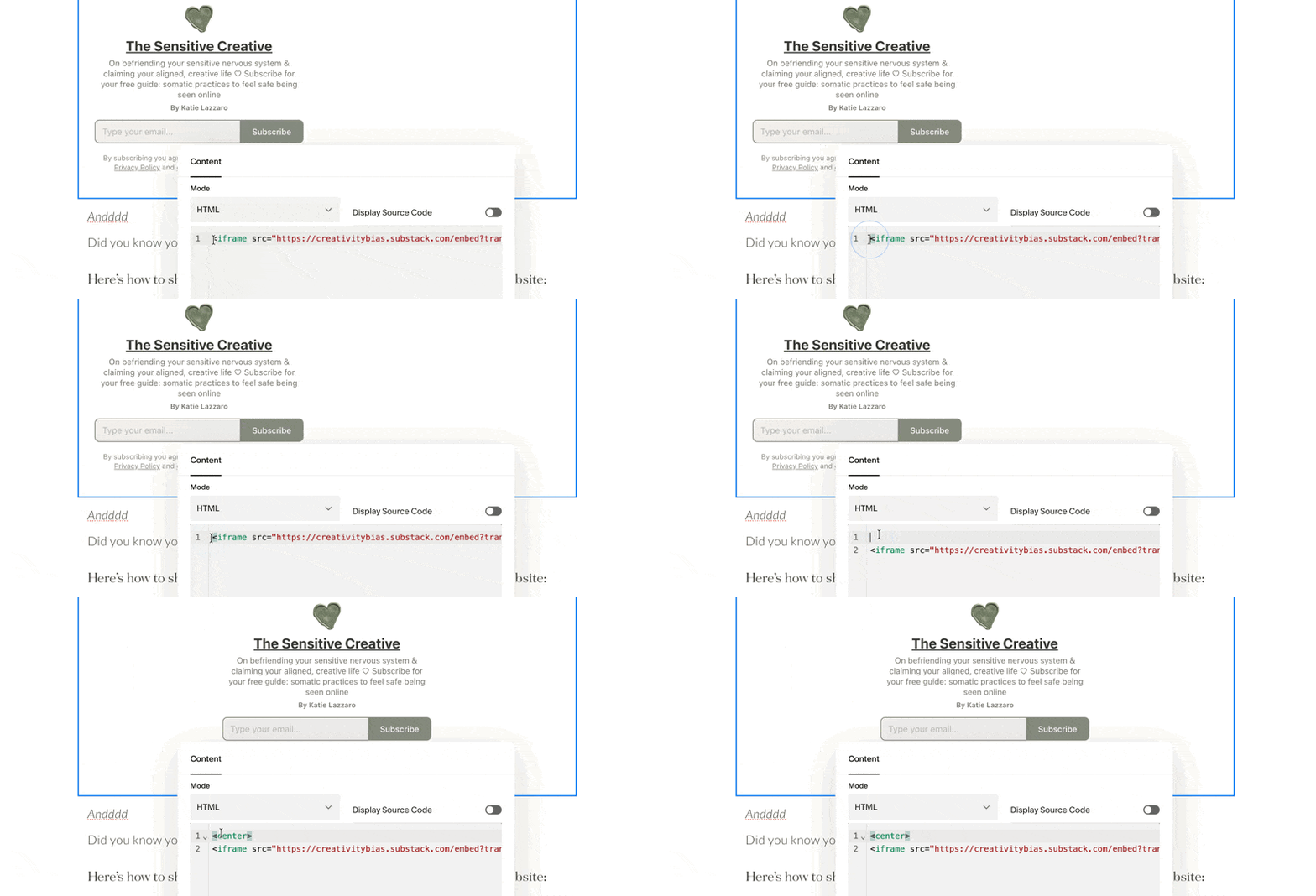
How to center the Substack embed html code with an easy code snippet
Step 5: Additional option: Edit the “height” and “width” numbers in the HTML code to change position of block on the page. I personally edited the width to be 380 (make sure that it’s not cut off in the “mobile” view of your website too!)
Andddd…
Did you know you can also display a feed of your recent Substack posts?
I’ll show you how to share your recent Substack activity on your Squarespace website in a post coming soon!

How to add your Substack as one of the pages displayed in your header
This is how I currently have my website displayed. I don’t use social icons in my header, so instead I opted for this method to display and share my Substack.
If you intentionally have a words-heavy website (great for SEO and actually can be an awesome design choice in some cases, maybe an unpopular belief of mine!), this is a great option to still keep your Substack easily accessible by any website visitors.
Step 1. Go to Pages > click + in the Main Navigation section
Step 2. Scroll down to the bottom of the options and click on “Link”
Step 3. Paste your Substack url
Step 4. Choose a display name, or word to show in your header navigation bar
Step 5. Make sure “Open in new window” is selected/toggled on
Step 6. Click save
Video: Add a link to your Substack in your Squarespace website header navigation
I know these tweaks and changes can feel overwhelming at first. Believe me, I know and struggled for years with letting overwhelm get the better, and sometimes the best, of me.
You by no means need to do all of these tweaks to your website either, especially all at once.
Before acting, let yourself sit with this for a few quiet moments.
Ask yourself: Do any of these options feel like the most empowering way I can share and display my Substack on my website?
And tackle that one first.
If you’re considering launching your first creative, professional, and manageable website, please consider signing up below to get on the waitlist for my new Substack to Squarespace premium website template
ps - if you’re neurodivergent or a highly sensitive person, this was literally made for you :)
This template is intentionally created not only to connect your website and Substack effortlessly, but also give you simple, streamlined, beautiful, manageable ways to display and sell your services, digital products, courses, and memberships all in one place (without paying 10+% to Substack or Gumroad ;0 every time you make a sale).